ClickUp Review 2026: The Ultimate Project Management Tool for Teams

Project management tools have become essential for modern teams, but finding the right platform remains challenging. Teams juggle tasks, documents, goals, time tracking, and communication across multiple tools, creating inefficiency and confusion. ClickUp promises to solve this problem by combining everything teams need into one platform. This comprehensive review examines whether ClickUp delivers on that promise and helps you decide if it fits your team's needs.
What Is ClickUp
ClickUp is an all-in-one productivity platform designed to replace multiple workplace tools. Founded in 2017, it combines project management, task tracking, document collaboration, goal setting, time tracking, and team communication in a single interface. The platform aims to be the "one app to replace them all" by offering extensive customization and features covering nearly every aspect of team collaboration.
Unlike specialized tools focusing on single functions, ClickUp takes a comprehensive approach. Teams can manage projects, write documents, track time, set goals, create dashboards, automate workflows, and communicate without switching between different applications. This integration promises to improve efficiency by centralizing work in one location.
Core Features Overview
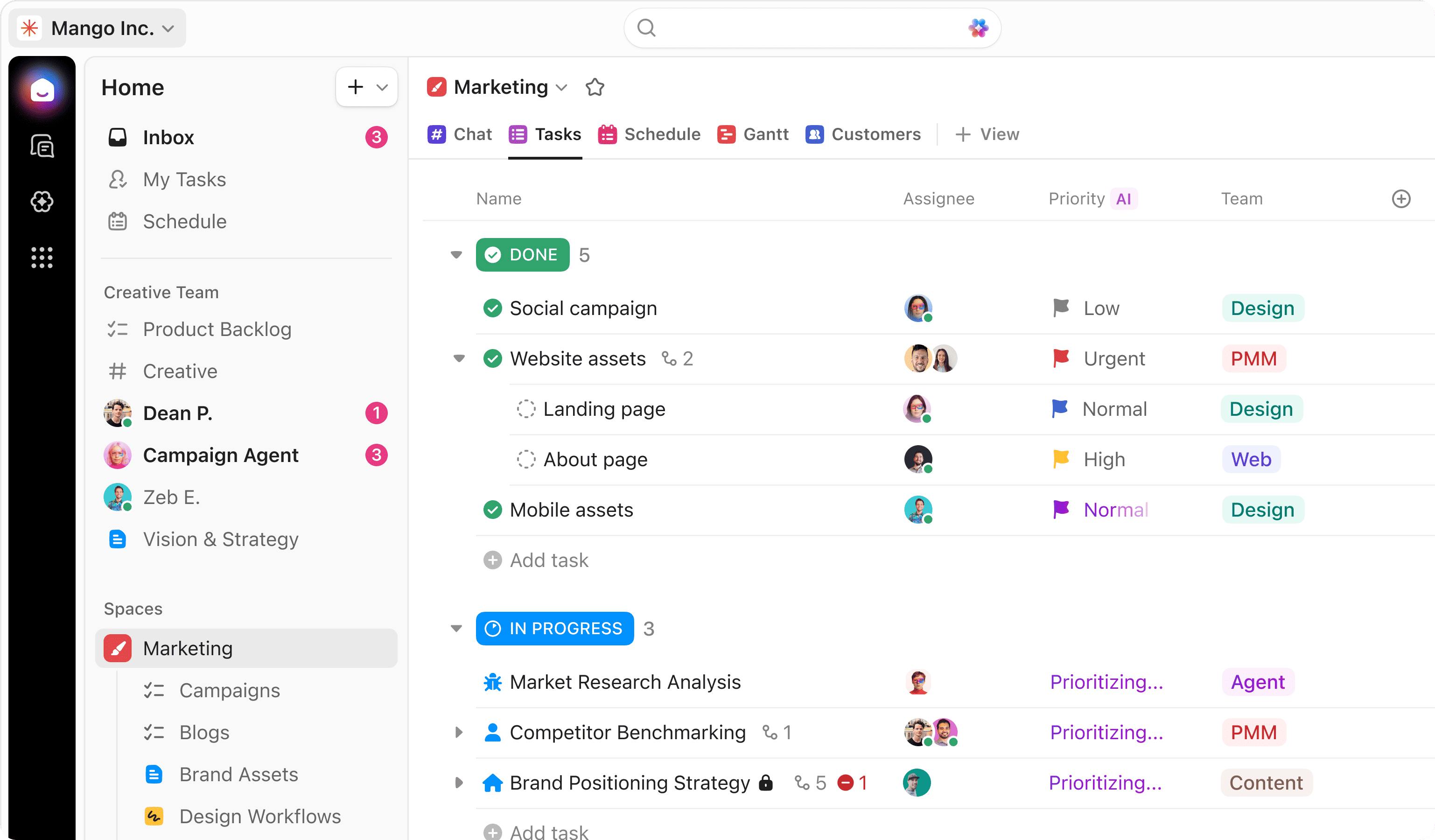
ClickUp offers an extensive feature set covering project management fundamentals and advanced capabilities. Task management forms the foundation, allowing teams to create, assign, organize, and track work items. Multiple view options including List, Board, Calendar, Gantt, Timeline, and Table let teams visualize work in ways matching their preferences and methodologies.
The platform includes Docs for collaborative writing and knowledge management, Goals for tracking objectives and key results, Dashboards for data visualization and reporting, Time Tracking for monitoring work hours, and Automations for eliminating repetitive tasks. Chat functionality enables team communication without leaving the platform. This breadth of features distinguishes ClickUp from more focused competitors.
Task Management Capabilities
ClickUp's task management provides flexibility through customizable fields, statuses, and workflows. Teams can add custom fields for any data type including text, numbers, dates, dropdowns, checkboxes, and relationships. This customization enables tracking project-specific information without rigid templates forcing unnatural workflows.
Tasks support subtasks, checklists, dependencies, priorities, due dates, assignees, watchers, and tags. Multiple assignees can collaborate on single tasks. Task templates save time by standardizing common work patterns. Recurring tasks automate repetitive work. The depth of task management features supports simple to-do lists and complex project workflows equally well.
View Flexibility and Customization
One of ClickUp's strongest features is view flexibility. Teams can visualize the same work in multiple ways depending on their needs and preferences. List view provides detailed task information in familiar rows. Board view offers Kanban-style columns for visual workflow management. Calendar view shows time-based planning. Gantt charts reveal dependencies and timelines for complex projects.
Timeline view presents work chronologically with drag-and-drop scheduling. Table view resembles spreadsheets for data-heavy projects. Workload view helps balance team capacity. Mind Maps enable brainstorming and hierarchical planning. Teams can create unlimited views, each filtered and configured differently, letting different team members see work in their preferred format simultaneously.
Hierarchy and Organization
ClickUp organizes work through a flexible hierarchy: Workspace, Spaces, Folders, Lists, and Tasks. This structure accommodates different organizational needs from small teams to enterprises. Workspaces contain entire organizations. Spaces represent departments or major areas. Folders group related Lists. Lists contain Tasks. Subtasks add another level when needed.
This hierarchy provides structure while remaining customizable. Teams can flatten or deepen it based on complexity needs. Tags and custom fields add cross-cutting organization beyond the hierarchy. Everything Permission controls determine who accesses each hierarchy level. This flexibility handles diverse organizational structures and project types.
Collaboration Features
Collaboration tools help teams work together efficiently within ClickUp. Comments on tasks enable threaded discussions with mentions, attachments, and reactions. Proofing tools let teams review and approve creative work directly in ClickUp. Whiteboards provide visual collaboration spaces for brainstorming and planning. Chat offers real-time team communication organized by topic.
Email integration sends and receives emails within ClickUp, centralizing communication. Screen recording creates instant video messages for clearer communication. Assigned comments ensure action items don't get lost in discussions. These collaboration features reduce the need for external tools while keeping context connected to relevant work.
Docs and Knowledge Management
ClickUp Docs provides a powerful alternative to Google Docs or Notion for team documentation. Rich text editing, nested pages, templates, and collaborative editing support creating wikis, SOPs, meeting notes, and project documentation. Docs can embed tasks, link to other docs, and include tables, images, and multimedia.
The key advantage is integration with project work. Docs can reference tasks, automatically update with live data, and convert text into actionable tasks instantly. This tight integration between documentation and execution keeps knowledge connected to relevant projects rather than siloed in separate tools.
Goals and OKR Tracking
Goals in ClickUp enable tracking objectives and key results with automatic progress updates. Teams can create goal hierarchies, set targets with various metrics (numbers, currency, true/false), and connect tasks to goals. As linked tasks complete, goal progress updates automatically without manual reporting.
This automation makes OKR tracking practical for teams that struggled with manual updates in spreadsheets. Dashboards can display goal progress alongside other metrics, providing visibility into strategic and tactical work simultaneously. The feature helps teams maintain focus on important outcomes rather than just completing tasks.
Time Tracking and Reporting
Built-in time tracking eliminates the need for separate time tracking tools. Team members can start timers from any task, track time manually, or use browser extensions to track time across applications. Time tracking data integrates with reports, dashboards, and billing features.
Timesheets provide overview of team time allocation. Time estimates can be compared against actual time for better future planning. Billable hours can be tracked and exported for invoicing. For teams needing detailed time data, this integration provides significant value by consolidating time tracking with task management.
Automation Capabilities
ClickUp's automation builder creates custom workflows triggered by various conditions and actions. Automations can move tasks between statuses, assign work, send notifications, update fields, create subtasks, and more based on triggers like status changes, due dates, new tasks, or custom field updates.
Pre-built automation templates cover common scenarios like task assignment, status progression, and notifications. Custom automations handle unique workflow needs. The automation builder uses simple "when this, then that" logic accessible to non-technical users while providing power for complex workflows. Automations reduce repetitive manual work and ensure consistency in processes.
Dashboards and Reporting
Dashboards aggregate data into visual reports using customizable widgets. Teams can create project overviews, team performance metrics, workload analysis, time tracking summaries, goal progress, and custom reports. Widgets include charts, lists, calculations, embedded docs, and more.
The flexibility enables creating dashboards for different stakeholders: detailed operational dashboards for team leads, high-level executive summaries for leadership, client-facing project status for external sharing. Real-time data updates keep dashboards current without manual refreshing. This reporting capability reduces need for external business intelligence tools for many teams.
Integration Ecosystem
ClickUp integrates with over 1000 external tools including Slack, Google Workspace, Microsoft 365, Zoom, GitHub, Figma, and major business applications. Native integrations enable two-way syncing keeping data current across platforms. Zapier and Make.com connections extend integration possibilities to thousands more applications.
The integration approach acknowledges that ClickUp won't replace every tool immediately. Teams can gradually centralize work while maintaining connections to specialized tools they need. API access enables custom integrations for specific requirements. This ecosystem helps ClickUp fit into existing technology stacks rather than requiring complete replacement of all tools.
Mobile Experience
ClickUp provides mobile apps for iOS and Android enabling work from anywhere. The mobile experience includes core features: creating and editing tasks, commenting, time tracking, checking notifications, and viewing dashboards. Offline mode allows continuing work without internet connection, syncing changes when connectivity returns.
While the mobile apps don't include every desktop feature, they cover essential workflows for staying connected and productive while away from computers. The experience focuses on quick updates, communication, and reviewing work rather than heavy project setup or complex customization better suited to larger screens.
Artificial Intelligence Features
ClickUp Brain brings AI assistance throughout the platform. It can generate task descriptions, summarize comments, write documents, answer questions about your workspace, and provide project insights. The AI understands your ClickUp data and context, making suggestions relevant to your actual work.
Standups can be automated with AI summaries of what team members accomplished. Meeting notes can be transformed into action items automatically. Project updates can be generated from actual task progress. These AI features reduce administrative overhead and help teams focus on meaningful work rather than status reporting.
Templates and Getting Started
ClickUp offers extensive template libraries covering common use cases: project management, marketing campaigns, software development, sales pipelines, HR processes, and more. Templates provide starting points with pre-configured tasks, custom fields, automations, and views saving setup time.
The template center includes both official ClickUp templates and community-created options. Teams can create custom templates from their own setups, standardizing successful workflows. This template ecosystem accelerates onboarding and helps teams adopt best practices rather than building everything from scratch.
Pricing Structure
ClickUp offers a Free Forever plan with unlimited tasks and members, making it accessible for small teams and personal use. The plan includes basic features but limits storage, integrations, and advanced capabilities. Unlimited plan at $7 per member monthly adds unlimited storage, integrations, and advanced features most teams need.
Business plan at $12 per member monthly includes advanced automation, workload management, timelines, and additional admin controls. Enterprise plans offer unlimited everything, white labeling, advanced permissions, and dedicated support. Education and nonprofit discounts reduce costs for qualifying organizations. The free plan generosity lets teams test thoroughly before committing financially.
Strengths and Advantages
ClickUp excels in customization and flexibility. Teams can configure it to match their exact workflows rather than adapting to rigid tool structures. The comprehensive feature set genuinely can replace multiple tools, reducing costs and context switching. Frequent updates and new features show active development responding to user needs.
The free plan's generosity makes ClickUp accessible to startups and budget-conscious teams without sacrificing core functionality. Integration breadth ensures ClickUp fits into existing tech stacks. The learning resources, templates, and active community help new users overcome the initial complexity. For teams wanting one consolidated platform, ClickUp delivers remarkable value.
Limitations and Considerations
The comprehensiveness that makes ClickUp powerful also creates complexity. New users often feel overwhelmed by the options and possibilities. The learning curve is steeper than simpler tools like Trello or Asana. Teams need to invest time in setup and configuration to match their workflows effectively.
Performance can lag with very large workspaces containing thousands of tasks, though ClickUp continuously improves this. The mobile experience, while functional, lacks some desktop features. Some users find the interface cluttered compared to minimalist alternatives. Teams wanting simple, opinionated tools might prefer more focused options.
Ideal Use Cases
ClickUp works exceptionally well for teams wanting to consolidate multiple tools into one platform. Remote and distributed teams benefit from the centralized communication and collaboration features. Agencies managing multiple client projects appreciate the flexibility to customize workflows per client.
Software development teams can manage sprints, bugs, and documentation in one place. Marketing teams can plan campaigns, manage content calendars, and track creative assets. Operations teams can document processes, track initiatives, and automate repetitive workflows. The versatility serves diverse industries and team types.
Getting Started with ClickUp
Begin by signing up for the free plan to explore without commitment. Start with a template matching your use case rather than building from scratch. Invite a small team subset to pilot before full rollout. Configure one workflow well before expanding to multiple use cases.
Take advantage of ClickUp University for structured learning. Join the community and forums for tips from experienced users. Start simple and add complexity gradually as you understand capabilities. Don't try to replace all tools immediately - integrate with existing tools and migrate gradually as confidence grows.
Comparison with Alternatives
Compared to Asana, ClickUp offers more customization and features but greater complexity. Versus Monday.com, ClickUp provides better value at lower price points with comparable capabilities. Against Notion, ClickUp excels at task management while Notion leads in flexible documentation. Trello is simpler but far less capable for complex project needs.
Jira remains stronger for software development-specific needs but ClickUp serves general teams better. Microsoft Project offers more robust enterprise project management but lacks modern collaboration features. The choice depends on whether you prioritize simplicity, specialization, or comprehensive flexibility.
Enterprise Considerations
Enterprise organizations need to evaluate security, compliance, and administrative controls. ClickUp offers SOC 2 Type II compliance, GDPR compliance, SSO integration, advanced permissions, and audit logs on Enterprise plans. White labeling enables branded experiences for client-facing uses.
Dedicated customer success managers help with onboarding and optimization. Custom contract terms accommodate enterprise procurement requirements. API access and webhooks enable integration with proprietary systems. These enterprise features make ClickUp viable for larger organizations with complex requirements.
Recent Updates and Roadmap
ClickUp maintains aggressive development, releasing new features regularly. Recent additions include enhanced AI capabilities, improved performance, advanced form builders, and expanded automation options. The public roadmap shows planned features and lets users vote on priorities.
This active development means ClickUp continuously evolves, addressing limitations and adding capabilities. However, it also means frequent changes requiring teams to adapt. Understanding the roadmap helps evaluate whether planned improvements address current limitations that might otherwise be dealbreakers.
Customer Support Quality
Support varies by plan. Free users access help documentation and community support. Paid plans add email support with faster response times at higher tiers. Enterprise customers receive priority support and dedicated success managers. The documentation is comprehensive with written guides, video tutorials, and searchable help center.
ClickUp University provides structured courses on features and best practices. The community forum and Facebook group offer peer support from experienced users. Live chat is available on Business and Enterprise plans. While not instantaneous, the support resources generally help users overcome obstacles effectively.
Security and Privacy
ClickUp implements industry-standard security practices including data encryption in transit and at rest, regular security audits, and SOC 2 Type II certification. Data centers use enterprise-grade infrastructure with redundancy and backups. Two-factor authentication adds account security.
Privacy policies comply with GDPR and other regulations. Users control data sharing and access permissions. Enterprise plans offer additional security controls including custom data retention and advanced audit logging. For teams with strict security requirements, these measures generally satisfy compliance needs.
Learning Resources
ClickUp provides extensive learning resources helping users master the platform. ClickUp University offers free courses covering basics to advanced features. Video tutorials demonstrate specific workflows and features. The blog shares use cases, tips, and best practices. Templates include setup guides explaining their structure and usage.
Webinars cover new features and advanced topics. The community forum enables asking questions and learning from other users. This investment in education helps mitigate the complexity challenge by giving users clear paths to competence.
Performance and Reliability
ClickUp generally maintains good uptime and reliability, though occasional performance issues occur with very large workspaces. The company has invested significantly in infrastructure improvements addressing earlier performance complaints. Real-time collaboration works smoothly for normal team sizes.
Loading times are reasonable for typical workspaces but can slow with extremely complex configurations or thousands of tasks. ClickUp's status page provides transparency about incidents and maintenance. For most teams, performance is acceptable, though enterprise users with massive datasets should test thoroughly.
Final Verdict
ClickUp delivers on its promise to be a comprehensive productivity platform replacing multiple tools. The flexibility and customization enable teams to configure it for their exact needs rather than adapting to rigid structures. The generous free plan and affordable paid tiers provide excellent value compared to purchasing multiple specialized tools.
However, this power comes with complexity requiring investment in learning and configuration. Teams wanting simple, opinionated tools should look elsewhere. Those willing to invest setup time gain a powerful platform that can truly centralize work. For teams currently juggling multiple tools and seeking consolidation, ClickUp deserves serious consideration.
Is ClickUp Right for You
ClickUp fits best if your team wants to consolidate multiple tools, needs extensive customization to match unique workflows, values flexibility over simplicity, or manages diverse project types requiring different approaches. It works well for remote teams needing centralized communication and collaboration.
Skip ClickUp if you want the simplest possible tool, have very basic project management needs satisfied by simpler alternatives, or lack time for setup and learning. Teams preferring opinionated tools that enforce specific methodologies should consider more focused alternatives. Start with the free plan to evaluate whether ClickUp's capabilities justify the complexity for your specific situation.
Start Your Webflow Journey
Discover the power of Webflow and begin creating beautiful, responsive websites today. Click below to get started directly on Webflow’s platform.
You Might Also Like
Explore our recommended articles for more Webflow tips, tricks, and inspiration to enhance your design workflow.